Reading time: 16 min
AI Internal Tools: Build Dashboards, Not Another Chatbot
A practical guide to AI internal tools: when teams need dashboards, workflow UIs, background agents, approval steps, and reports instead of another chatbot.
Every Friday morning, an operations manager opens five tabs: a CRM export, a support queue, a project tracker, a spreadsheet, and a payment dashboard. Then she spends two hours copying numbers into a weekly report, highlighting risks in yellow, asking three people for missing updates, and trying to decide which problems actually need attention.
A chatbot can answer questions about that mess. It can summarize a spreadsheet, explain a support ticket, or draft a status update.
But the team does not really need another chat window. It needs a dashboard that already knows what changed, which rows are stale, which accounts are blocked, which tasks need approval, and which numbers are safe enough to send to leadership.
That is the real opportunity for AI internal tools. The best AI interface for operations is often not a conversational assistant. It is a structured workflow UI with AI running in the background.
This article explains when to build an AI dashboard instead of a chatbot, how the architecture works, what workflows make good first projects, and which risks matter before an internal tool touches real business data.
The Problem with Chatbots in Operations
Chat is useful when a person has an open-ended question. It is weaker when a team needs shared visibility, repeatable actions, and a reliable state of work.
Most business operations are not one-off conversations. They are queues, tables, statuses, approvals, exceptions, owners, due dates, and reports. A blank prompt box is a poor interface for that kind of work.
A support lead does not want to ask, “Which tickets are urgent today?” every morning. They want a queue that already shows urgent tickets at the top.
A sales manager does not want to ask, “Which leads have missing fields?” They want a CRM cleanup dashboard with filters, warnings, and action buttons.
A founder does not want to ask, “What changed this week?” They want a weekly operations dashboard that already summarizes blockers, revenue movement, support pressure, and overdue work.
Chat has three common problems in operations:
-
Low discoverability
Users have to guess what to ask and how to phrase it. -
Weak shared state
A chat answer may be useful, but it does not always become a durable workflow item with owner, status, and audit trail. -
Poor macro-visibility
Chat is bad at showing 200 customers, 500 tickets, 40 projects, or 12 approval queues at a glance.
The issue is not that chatbots are useless. The issue is that many companies use chat where they actually need software.
The Dashboard Alternative
A dashboard is not just a prettier report. A good internal dashboard turns scattered business data into an operational surface where people can see status, approve actions, and move work forward.
AI fits naturally behind that interface.
Instead of asking an AI assistant to inspect a process manually, the system can run in the background:
- Pull data from business systems.
- Normalize messy records.
- Summarize changes.
- Detect exceptions.
- Draft recommended actions.
- Show everything in a structured dashboard.
- Ask for human approval before risky updates.
A practical architecture looks like this:
Data sources → scheduled worker → AI processing → structured database → dashboard → approval step → system update → audit log
The human does not need to prompt the AI every time. The dashboard tells them where attention is needed.
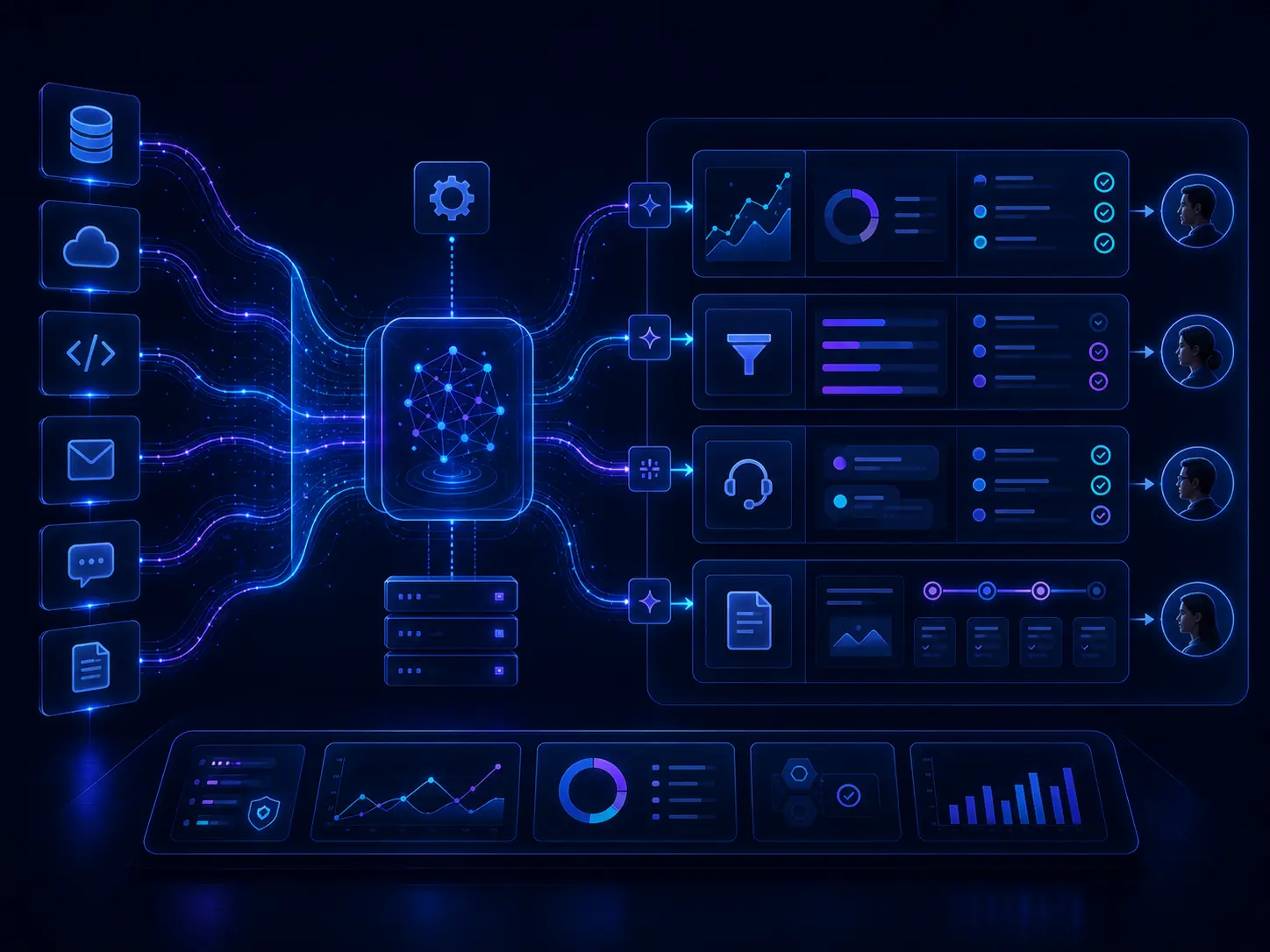
 AI internal tool architecture showing data sources, background workers, AI summaries, dashboard views, approval steps, and audit logs.
Dashboard vs Chatbot
| Question | Chatbot | AI internal dashboard |
|---|---|---|
| Best for | One-off questions and exploration | Repeatable workflows and shared visibility |
| Interface | Blank prompt box | Tables, filters, charts, queues, buttons |
| State | Often temporary | Stored records, owners, statuses, audit logs |
| User action | Ask and wait | Review, filter, approve, assign, export |
| Risk control | Depends on prompt and tool access | Can enforce permissions and approval steps |
| Good example | “Summarize this contract” | “Show all contracts waiting for review” |
The choice is not ideological. Use chat when the user needs flexible exploration. Use a dashboard when the team needs a repeatable process.
Example 1: Weekly Operations Dashboard
A weekly operations dashboard is one of the safest and most useful AI internal tools to build first.
The old process: someone checks project boards, CRM updates, invoices, support tickets, and spreadsheets manually. Then they writes a weekly report from scratch.
The AI internal tool: a background worker pulls the latest data, detects changes, summarizes blockers, flags missing updates, and prepares a draft report. The dashboard shows the evidence behind each summary.
Useful sections might include:
- stalled projects;
- overdue tasks;
- high-priority support issues;
- accounts with no recent activity;
- invoices waiting for action;
- team updates missing from the report;
- AI-generated summary with source links.
The human operator still approves the final report. The value comes from reducing data gathering, formatting, and first-pass analysis.
Good proof metric: weekly report preparation time, number of manual sources removed, and number of blockers found earlier.
Example 2: Sales Pipeline Dashboard
A sales chatbot can answer questions about leads. A sales dashboard can show the team exactly where pipeline quality is breaking.
An AI-powered sales dashboard might:
- detect duplicate leads;
- show accounts missing key fields;
- summarize recent interactions;
- flag leads with no follow-up;
- draft next-step notes;
- recommend routing;
- show approval buttons before updating CRM records.
This is stronger than a chatbot because the sales manager can see the whole pipeline at once. They can filter by owner, stage, source, score, and follow-up status.
Good proof metric: lead response time, CRM completeness, duplicate rate, follow-up speed, and sales acceptance rate.
Example 3: Support Triage Dashboard
Support work is naturally dashboard-shaped. There are tickets, owners, priorities, customers, SLAs, escalation paths, and resolution states.
AI can help by:
- classifying issue type;
- detecting urgency;
- summarizing long conversations;
- finding related docs;
- flagging angry or high-value customers;
- drafting internal notes;
- recommending escalation.
The dashboard should show the queue, not hide it inside a chat. A support lead needs to scan pressure points quickly: which tickets are stuck, which customers are at risk, and which issues may be part of a wider incident.
Good proof metric: first response time, triage time, routing accuracy, backlog size, and escalation speed.
Example 4: Content Production Dashboard
Content teams often manage work across docs, calls, briefs, CMS drafts, design tasks, approvals, and publishing calendars.
A chatbot can help draft a post. But a production dashboard can manage the actual operation:
- raw ideas waiting for review;
- recordings waiting for transcription;
- drafts waiting for edit;
- articles missing metadata;
- posts without internal links;
- assets waiting for design;
- publishing calendar by channel;
- performance notes after publication.
AI can summarize raw material, extract hooks, generate draft briefs, check SEO metadata, and flag missing review steps. The dashboard keeps the pipeline visible.
Good proof metric: content cycle time, number of stuck drafts, review completion rate, and publishing consistency.
When a Chatbot Is Still the Better Choice
Dashboards are not always the answer. Sometimes chat is exactly the right interface.
Use a chatbot when:
- the task is exploratory;
- the user does not know the exact question in advance;
- the data is mostly unstructured;
- the output is a draft, explanation, or research direction;
- the user needs to ask follow-up questions;
- the workflow is not repeated often enough to justify a custom UI.
Examples include searching a large internal wiki, brainstorming campaign angles, asking questions about a long document, or investigating an unusual customer issue.
The best systems often combine both: dashboard for the core workflow, chat for edge cases and investigation.
When to Build an AI Internal Tool
Build a dashboard or workflow tool when the task has these traits:
- the process happens every week or every day;
- multiple people need the same view;
- the team already uses spreadsheets or manual status trackers;
- the workflow has owners, statuses, due dates, approvals, or exceptions;
- the output needs to be stored, audited, or shared;
- the business needs metrics, not just answers.
A useful rule: if the team keeps asking the same operational question repeatedly, that question probably belongs in a dashboard.
For example:
- “Which leads need follow-up?” becomes a sales queue.
- “Which clients are blocked?” becomes an operations dashboard.
- “Which tickets are urgent?” becomes a support triage view.
- “Which documents need review?” becomes an intake dashboard.
- “What changed this week?” becomes an automated weekly report.
Architecture Pattern for AI Internal Tools
A production internal tool does not need to be huge, but it should have clear layers.
-
Data sources
CRM, help desk, database, forms, spreadsheets, email, calendar, document storage, analytics tools, project boards. -
Ingestion layer
Webhooks, scheduled jobs, API pulls, file uploads, or manual imports. -
AI processing layer
Classification, summarization, extraction, deduplication, scoring, draft generation, anomaly detection. -
Structured database
A place to store normalized records, statuses, summaries, approvals, and historical changes. -
Dashboard UI
Tables, filters, charts, queues, detail views, buttons, and review panels. -
Approval and action layer
Humans approve, reject, edit, assign, export, send, or update records. -
Audit and monitoring layer
Logs, cost tracking, user actions, model outputs, confidence scores, and system errors.
This structure matters because AI output should not float around as temporary chat text. It should become part of a controlled workflow.
Build vs Buy vs Low-Code
Not every internal tool needs a custom codebase.
A fast MVP can often be built with low-code tools, automation platforms, spreadsheets, and a small AI layer. A more sensitive or complex workflow may need a custom React/Next.js app, a database, role-based permissions, and a proper backend.
Use low-code when:
- the workflow is simple;
- the team needs a quick proof of concept;
- data sensitivity is low or moderate;
- the UI is mostly tables and forms;
- integrations are standard.
Use custom software when:
- permissions are complex;
- data is sensitive;
- the workflow is core to the business;
- performance matters;
- the UI needs to be highly specific;
- the tool may become a long-term product.
The mistake is not using low-code. The mistake is building a fragile internal tool with no owner, no data model, no permissions, and no plan for maintenance.
Risks: What Can Go Wrong
AI internal tools can create real operational value, but they can also create new failure modes.
The main risks are:
-
Stale data
The dashboard looks authoritative but is not synced with the source system. -
Wrong summaries
AI compresses information and accidentally removes an important exception. -
Permission leakage
A user sees records, files, or customer details they should not see. -
Silent writes
The system updates CRM, tickets, or reports without enough review. -
Over-trust
Teams treat AI-generated scores or summaries as facts instead of recommendations. -
No audit trail
Nobody can tell what data the AI used, what it changed, or who approved it. -
Dashboard clutter
Too many cards, charts, and alerts make the tool harder to use than the spreadsheet it replaced.
The solution is boring but important: source links, sync timestamps, role-based access, confidence indicators, approval steps, and audit logs.
Design Rules for AI Dashboards
A dashboard should reduce cognitive load, not become another wall of metrics.
Useful design rules:
- show the most important exceptions first;
- separate raw data from AI summaries;
- include source links for every AI-generated recommendation;
- make approval actions explicit;
- show when data was last synced;
- use filters for owner, status, priority, and date;
- keep charts tied to decisions;
- avoid decorative AI widgets that do not change the workflow.
The best internal tools are often quiet. They do not announce that they are powered by AI every five seconds. They simply make the workflow easier to run.
How to Find the First Use Case
Start with the messiest spreadsheet in the company.
Look for a file where people manually copy information from emails, highlight rows, add comments, change statuses, and ask each other what is still missing.
Then ask:
- What is the source of each column?
- Which fields are copied manually?
- Which rows require judgment?
- Which actions are repeated every week?
- Which mistakes create rework?
- Which updates need approval?
- Who reads the final output?
That spreadsheet is probably already an internal tool. It is just a fragile one.
The first AI internal tool should not replace the entire operation. It should replace the worst part of the manual workflow: data gathering, first-pass classification, repetitive summaries, missing-field checks, or weekly reporting.
Conclusion: The Best AI Interface Is Often Not Chat
Chat is powerful, but it is not the natural interface for every business process.
When a task is exploratory, conversational AI is useful. When a task is repeatable, shared, measurable, and tied to operational state, a dashboard or internal workflow tool is usually better.
The real value comes from combining both ideas: AI in the background, structured UI in the foreground, and human approval where decisions matter.
Do not start by asking, “What chatbot can we build?” Start by asking, “Which workflow is stuck in spreadsheets, status meetings, and manual reports?”
That is where AI internal tools become useful. Not because they are futuristic, but because they make real work easier to see, review, and move forward.